The IPercept Site Report: Your Whole Site's Machine Health, Down to the Component
You monitor dozens of CNC machines and every one has its own Machine Health report. Which machine do you fix first, which can wait, what changed since last month, and did the last repairs hold?
Turning every Machine Health result into one maintenance plan, with each recommendation tied to a component.
You monitor dozens of CNC machines and every one has its own Machine Health report. Which machine do you fix first, which can wait, what changed since last month, and did the last repairs hold?
A Site Report from IPercept shows the health of every machine on your site, broken down by component. It tells you which machine to fix first, and which component on it needs the work. In the example site used in this guide, that is the bearing in the Z axis of Machine 1, the bearing in the grinding spindle of Machine 13 and the belt drive on the turning spindle of Machine 5, all three flagged Production Critical since the previous report, followed by six Inspection Advised items, from a ballscrew nut to the gearbox on a B axis. Every action item on the report points to a specific component or setting.
The component detail comes from the Machine Health service itself, which traces the condition of each monitored subsystem to the components inside it[2]. The Site Report carries it up to the whole site and arranges it four ways: a checklist of the findings that need your action, each with the subsystem's stage, the urgency, the component and the recommended action; a map of the degradation stage of every spindle and axis; markers for what changed since the previous report; and a list of the findings your team has already closed. Read in the right order, it turns a stack of separate reports into one ranked maintenance plan that starts at the site and ends at the component.
This guide walks through each section using an example site of 15 machines in 4 machine groups[1]. The machines, groups and findings are illustrative and do not describe a real customer.
Read a Site Report in six steps
Each step uses one section of the report, and each section is explained in detail further down in this guide.
- Act on Production Critical. Take each Production Critical row from the checklist and review it now. Example: the bearings in the Machine 1 Z axis and the Machine 13 grinding spindle, and the Machine 5 turning spindle belt drive.
- Schedule Inspection Advised. Put each Inspection Advised row into the next maintenance window and check parts availability for the named component. Example: six items on Machines 1, 2, 5, 8, 9 and 10, one of them a servo tuning review with the machine builder.
- Read what changed. Look for NEW, UPDATED and stage arrows, and check that every finding without a badge is already planned. Example: four subsystems moved to a later stage, one of them by two stages, and five findings are new; four were open at the previous report.
- Find the concentration. Read the group bars and note any group with several machines in later stages. Example: Groups 1 and 4 hold both Critical machines and three of the four stage moves.
- Check the fixes. Look up every resolved observation in today's grid. Example: all five resolved subsystems are Stable, and Machine 4's closed backlash finding is a lead for Machine 1.
- Confirm coverage. Note machines under setup and keep the weekly test cycles running everywhere. Example: Machine 12 has no stages yet.
For the example site, those six steps produce a short plan: three reviews now, two bearings and a belt drive; six inspections in the next window, one of them a parameter review with the machine builder; a look at what fixed Machine 4's backlash before working on Machine 1; and no action on the other seven operational machines beyond continued weekly testing.
A Site Report puts the latest Machine Health result of every monitored machine side by side
A Site Report is a summary built from the Machine Health reports of all your monitored machines[5]. A Machine Health report describes one machine in depth: a degradation stage for each monitored subsystem, observations grouped by urgency, and a Root Cause Analysis that links each finding to a component[2]. The Site Report keeps the stage of every subsystem and every open observation with the component behind it, and leaves the full failure-mode tables in the individual reports, so you can compare machines instead of reading them one at a time.
A subsystem is a group of components that together perform one function, for example a linear X axis made up of a ballscrew, bearings, a motor and linear guides[3]. Machine Health monitors linear axes, rotary axes, spindles and other kinematic elements on each kinematic chain that carries an IPercept Smart Device[2].
The example report has four parts[1]:
- Checklist: the open findings that need action, grouped by machine group.
- Subsystem Health Overview: a site-wide status, a status bar for each machine group, and a grid with the stage of every subsystem on every machine.
- Resolved Observations: findings that were closed, with the date each was closed.
- Reference definitions: the degradation stages and urgency categories used in the report.
In the example, the header lists 4 machine groups, 14 operational machines and 1 machine under setup, and the date of the previous report, 2026-09-23. The report itself was generated on 2026-10-23[1].
The example also shows why a site view works on a mixed shop floor. Its groups follow machine type: Group 1 holds four milling machines with X, Y and Z axes and a milling spindle, Group 2 four turning machines with X, Z and C axes and a turning spindle, Group 3 milling machines with additional B and C axes, and Group 4 three grinding machines[1]. All of them report on the same four stages. Machine Health applies to milling, turning, grinding, broaching and other numerically controlled machines whose controller can run the test cycle[2], and it is used across machine brands and ages, from old one-off builds to new standard machines[7].
A Site Report is a factory-wide snapshot
The Site Report shows the condition recorded in each machine's latest Machine Health result[5]. Machine Health reports are issued at service start, after a confirmed worsening of a degradation stage, once a year, after a machine event the customer reports, and on request[2]. The results behind a Site Report can therefore have different dates for different machines. For anything that changed since, the IPercept Portal holds the current stage and the history of each subsystem[2].
The underlying measurements come from a short test cycle the machine runs, about five minutes, usually once a week[3]. The service does not watch the machine continuously, so sudden events unrelated to wear, such as a collision or a lubrication failure, can still stop a machine between tests[3]. Observations and recommendations are indicative and may not identify every fault, and maintenance and safety decisions stay with the machine owner[2].
Only subsystems on a kinematic chain equipped with a Smart Device appear in the report[2]. A machine with a monitored tool side and an unmonitored workpiece side shows only the tool side.
The checklist lists the findings that need your action, machine group by machine group
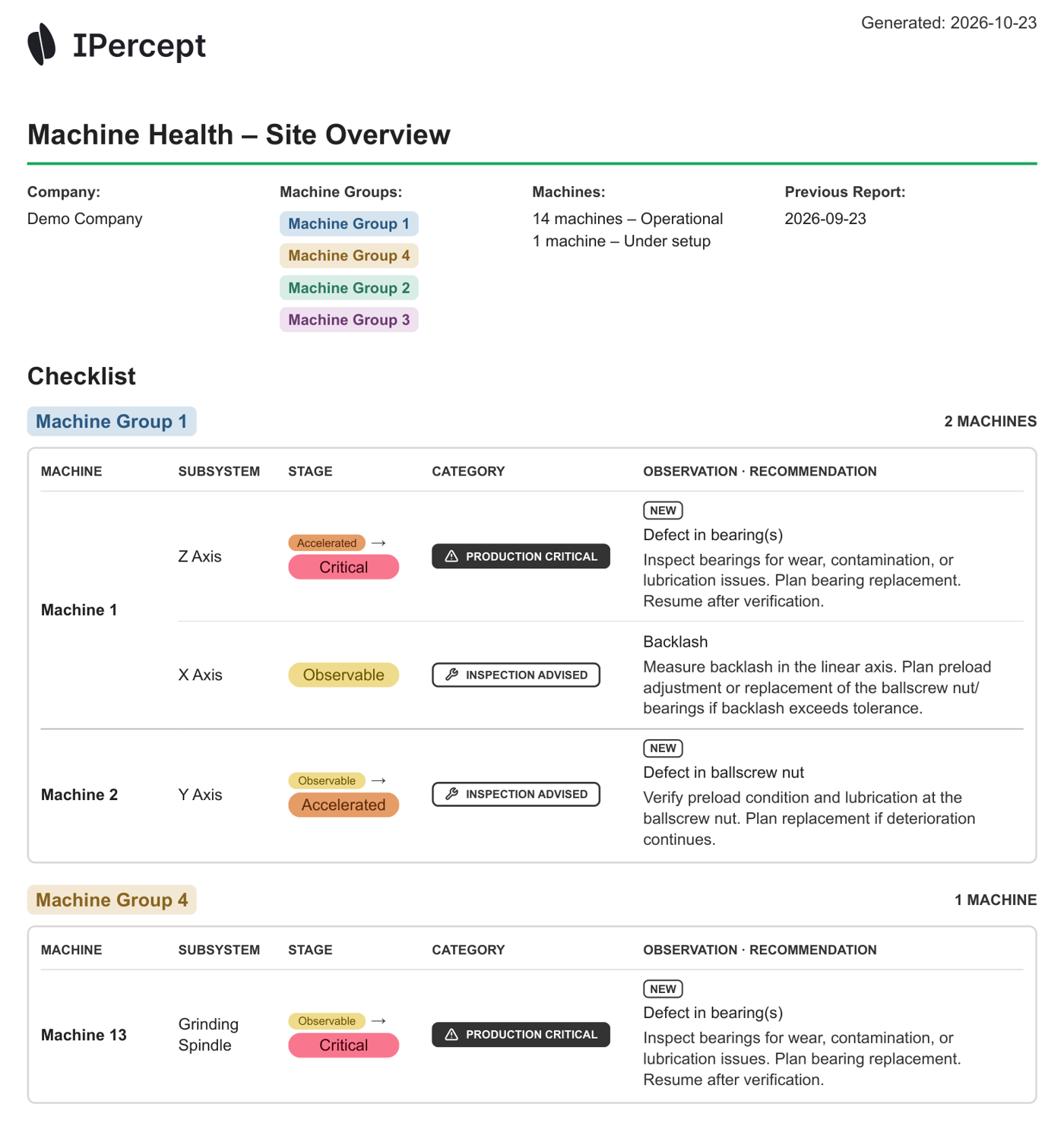
Start with the checklist, because it is the shortest path from report to work order. It lists open observations in the two urgency categories that ask something of you, Production Critical and Inspection Advised, and groups them by machine group[1]. Each row names the machine, the subsystem, the subsystem's current stage, the urgency category, the observation and a recommended action.
The two categories mean the following[2]:
- Production Critical: a condition IPercept flags for prompt customer review.
- Inspection Advised: a scheduled intervention is recommended.
An empty slot is a finding in itself: every monitored subsystem that is absent from the checklist has no open finding that asks for your action.
Applied to the example site. The checklist has nine findings on seven machines[1]:
- Machine 1, Z axis (Group 1): Defect in bearing(s) (NEW). Stage Accelerated → Critical, Production Critical.
- Machine 1, X axis (Group 1): Backlash. Stage Observable, Inspection Advised.
- Machine 2, Y axis (Group 1): Defect in ballscrew nut (NEW). Stage Observable → Accelerated, Inspection Advised.
- Machine 13, Grinding spindle (Group 4): Defect in bearing(s) (NEW). Stage Observable → Critical, Production Critical.
- Machine 5, Turning spindle (Group 2): Defect in belt drive system (NEW). Stage Observable → Accelerated, Production Critical.
- Machine 5, Z axis (Group 2): Localized defect in shields. Stage Observable, Inspection Advised.
- Machine 8, C axis (Group 2): Misalignment. Stage Observable, Inspection Advised.
- Machine 9, B axis (Group 3): Defect in gearbox. Stage Accelerated, Inspection Advised.
- Machine 10, X axis (Group 3): Suboptimal control parameters (NEW). Stage Observable, Inspection Advised.
The bearings in the Machine 1 Z axis and the Machine 13 grinding spindle, and the belt drive on the Machine 5 turning spindle, are the three items to review now. The six Inspection Advised items are the next maintenance window's work list. Five of them name the component to inspect, so parts can be checked before the window opens. The sixth, on Machine 10, points to the servo tuning: the recommendation is to review the parameters with the machine builder and re-run the test cycle after the adjustment[1].
The report lists the groups in the order 1, 4, 2, 3, which puts the two groups with a Critical machine at the top[1]. Seven of the 14 operational machines do not appear on the checklist at all: none of their subsystems has an open finding that asks for action.
The site-wide status counts each machine by its most degraded subsystem
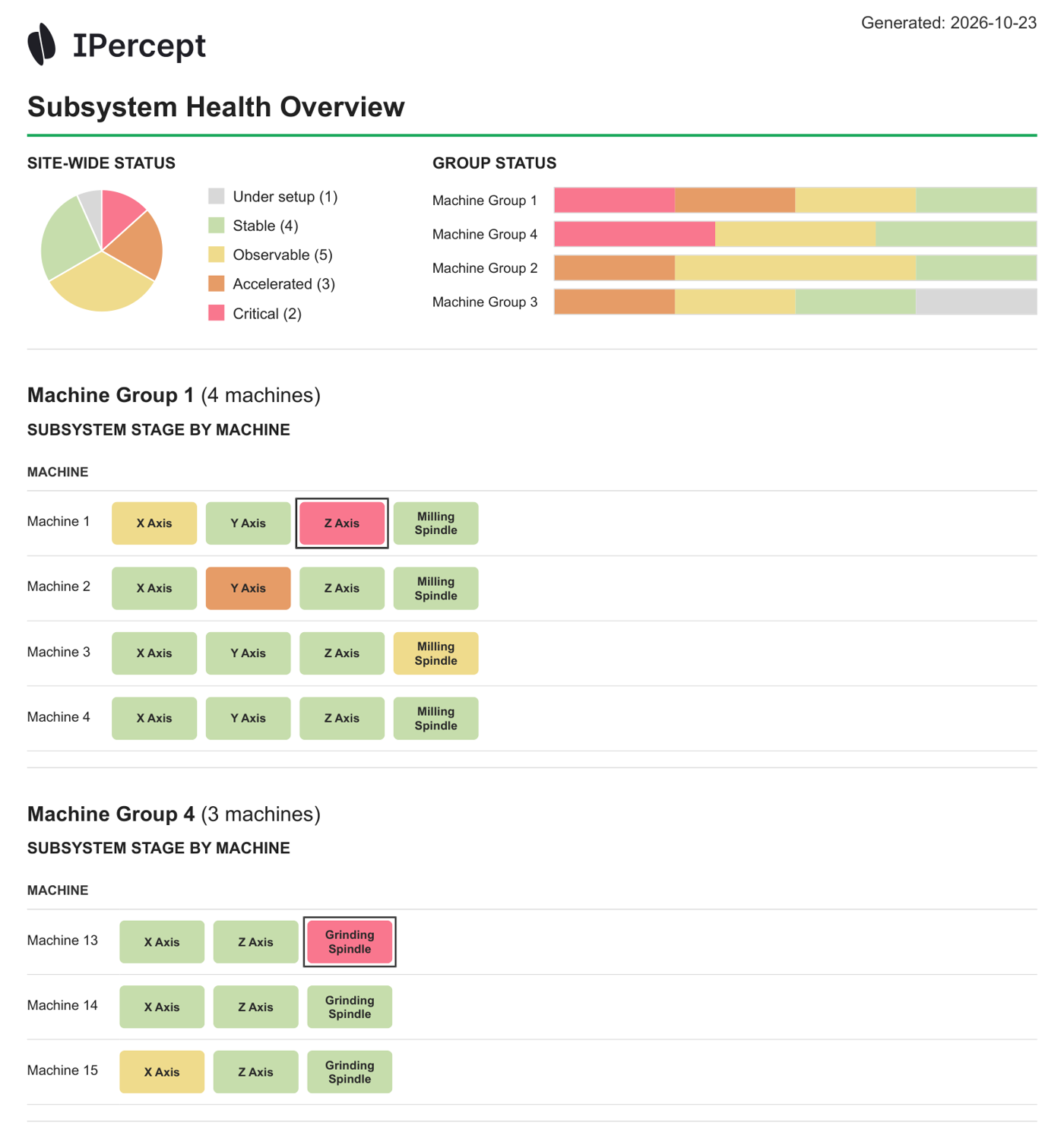
The Subsystem Health Overview opens with a pie chart of all machines by stage[1]. The four stages express the absolute level of degradation as an indicative Remaining Useful Life (RUL) range, meaning the share of a subsystem's working life estimated to remain before intervention is needed[1][2]:
- Stable (Green): RUL above 75 %
- Observable (Yellow): RUL 50 to 75 %
- Accelerated (Orange): RUL 25 to 50 %
- Critical (Red): RUL below 25 %
A machine has several subsystems, so the pie needs one stage per machine. In the example, the counts match the most degraded subsystem of each machine: Machine 1 is counted as Critical because of its Z axis, although its Y axis and milling spindle are Stable and its X axis is Observable[1]. This is an inference from comparing the pie with the subsystem grid, and it is the safe way to read the chart. A machine in the Observable slice can have one yellow subsystem and four green ones.
Applied to the example site. The pie shows 4 Stable, 5 Observable, 3 Accelerated, 2 Critical and 1 under setup[1]. Read it from the red end. Two machines have a subsystem near the end of its working life, three have a subsystem in accelerated degradation, and five have at least one subsystem showing early wear. The four Stable machines have every monitored subsystem above 75 % RUL.
The group bars show where degradation is concentrated
Next to the pie, each machine group gets a horizontal bar split by the same stage colours[1]. Every machine is measured the same way, whatever its brand or age[7], so the bars can be compared across groups. When groups follow machine type, as in the example, the bars compare machine types. When they follow lines or cells on the shop floor, they show whether wear is spread evenly or concentrated in one place.
Applied to the example site. Group 1, the three-axis milling machines, spans all four stages with one machine in each: Machine 1 Critical, Machine 2 Accelerated, Machine 3 Observable and Machine 4 Stable[1]. Group 4, the grinding machines, holds the second Critical machine, Machine 13, next to one Observable and one Stable machine. Together the two groups hold both Critical machines and three of the four stage moves. Group 3 shows grey for the machine under setup[1].
The report shows where the degradation is. It does not explain why a group looks the way it does. Machine age, workload, programs or maintenance practice in that group are the questions to ask your own team, and the group bar tells you which group to ask about first.
The subsystem grid shows which axis or spindle sets each machine's stage
Under the group bars, the report lists every machine in every group with one coloured tile per monitored subsystem[1]. A dark outline marks a subsystem with an open Production Critical observation[1].
The grid is where you move from "which machine" to "which part of the machine". It also shows the spread inside a machine. A machine whose spindle and two axes are yellow is in a different position from a machine with one yellow axis, even though both count as Observable in the pie.
Applied to the example site. On Machine 1 the Z axis tile and on Machine 13 the grinding spindle tile are red and outlined. On Machine 5 the turning spindle tile is orange and also outlined[1]. The three Accelerated subsystems are the Y axis of Machine 2, the turning spindle of Machine 5 and the B axis of Machine 9. Every outlined, orange or red tile on the site appears on the checklist. Two spindles are Observable, the milling spindles of Machines 3 and 9. The turning spindle of Machine 5 is Accelerated and the grinding spindle of Machine 13 is Critical[1].
Condition of a subsystem based on stages and urgency
The stage describes the overall condition of a subsystem. The urgency category describes how soon a specific finding needs attention. The report states that the two are assessed independently[1].
That independence is why the checklist shows both, and the example makes it visible. The turning spindle of Machine 5 is Accelerated, one stage short of Critical, yet its belt drive finding is Production Critical[1]. Four Observable subsystems carry an Inspection Advised finding: the X axis of Machine 1, the Z axis of Machine 5, the C axis of Machine 8 and the X axis of Machine 10. Other Observable subsystems carry none, for example the milling spindle of Machine 3 and the X axis of Machine 15[1]. A yellow tile can carry a task or none, and an orange tile can carry the most urgent finding on the site.
The Observable stage means early signs of wear are present while the subsystem keeps working, and IPercept recommends at least one test per week, with more frequent testing in later degradation stages[2]. Plan work from the checklist, and use the grid to see the condition around each item.
The resolved list shows what your team closed and whether the fix held
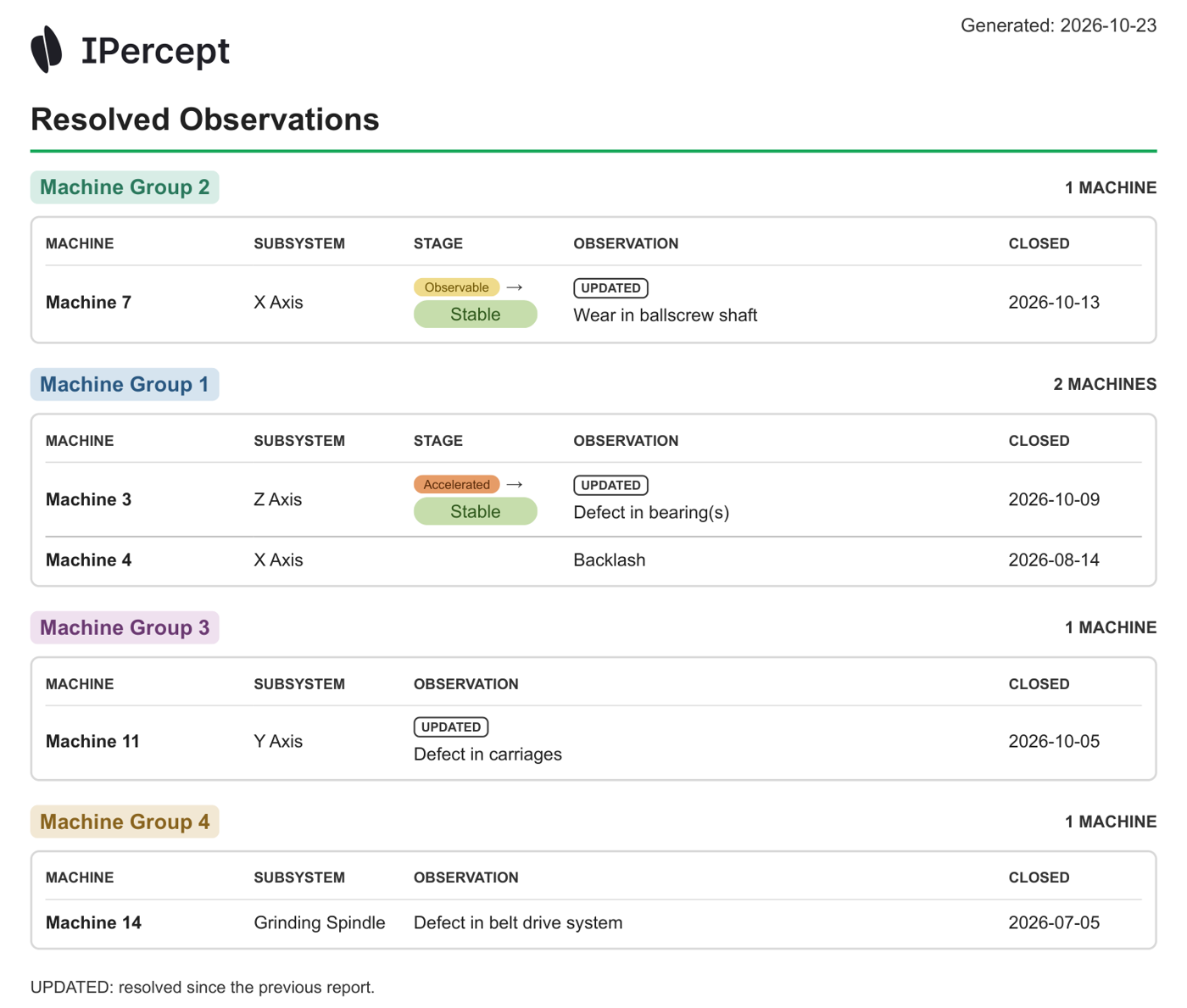
The last data section lists observations that were closed, grouped by machine group, with the closing date, an UPDATED badge for those resolved since the previous report and, where the stage changed, an arrow[1]. It is the record of work done, and it is also the easiest way to check a repair. Look up each resolved subsystem in today's grid and see what stage it is in now.
Applied to the example site. Five observations were closed, three of them since the previous report[1]:
- Machine 7, X axis: Wear in ballscrew shaft (UPDATED), closed 2026-10-13, stage Observable → Stable. Current stage: Stable.
- Machine 3, Z axis: Defect in bearing(s) (UPDATED), closed 2026-10-09, stage Accelerated → Stable. Current stage: Stable.
- Machine 11, Y axis: Defect in carriages (UPDATED), closed 2026-10-05. Current stage: Stable.
- Machine 4, X axis: Backlash, closed 2026-08-14. Current stage: Stable.
- Machine 14, Grinding spindle: Defect in belt drive system, closed 2026-07-05. Current stage: Stable.
All five subsystems are Stable in the current grid, so on this report every fix held[1]. The Machine 3 Z axis went from Accelerated back to Stable after the bearing finding was closed. The list is also useful across machines. Machine 4 had a backlash finding on its X axis closed in August, and Machine 1 in the same group now has an open backlash finding on its X axis[1]. The report does not say the two are related, but what fixed Machine 4 is a sensible place to start on Machine 1.
Machines under setup are listed but not yet assessed
A machine whose service has only just started appears in its group without any subsystem tiles[1]. Its degradation stages are established during the first weeks of testing after installation, typically one to two weeks[3]. Until then, the machine counts towards the total but carries no stage and no findings.
Applied to the example site. Machine 12 in Group 3 is under setup[1]. It appears as the grey slice in the pie and the grey part of the Group 3 bar, and it will receive stages in a later report. Its absence from the checklist says nothing yet about its condition.
Every machine is measured the same way, which is what makes a site view possible
The Site Report is part of IPercept's Machine Health service, which monitors the mechanical condition of CNC machines such as milling, turning and grinding machines[2]. A Smart Device mounted on the machine's kinematic chain records motion and vibration while the machine runs IPercept's patented test cycle[2]. A physics-based digital twin of each kinematic chain is compared with the test results to detect developing faults and assign failure-mode probabilities[2]. By default the installation is standalone, without integration into your IT infrastructure, and the Smart Device identifies the test cycle by itself[4].
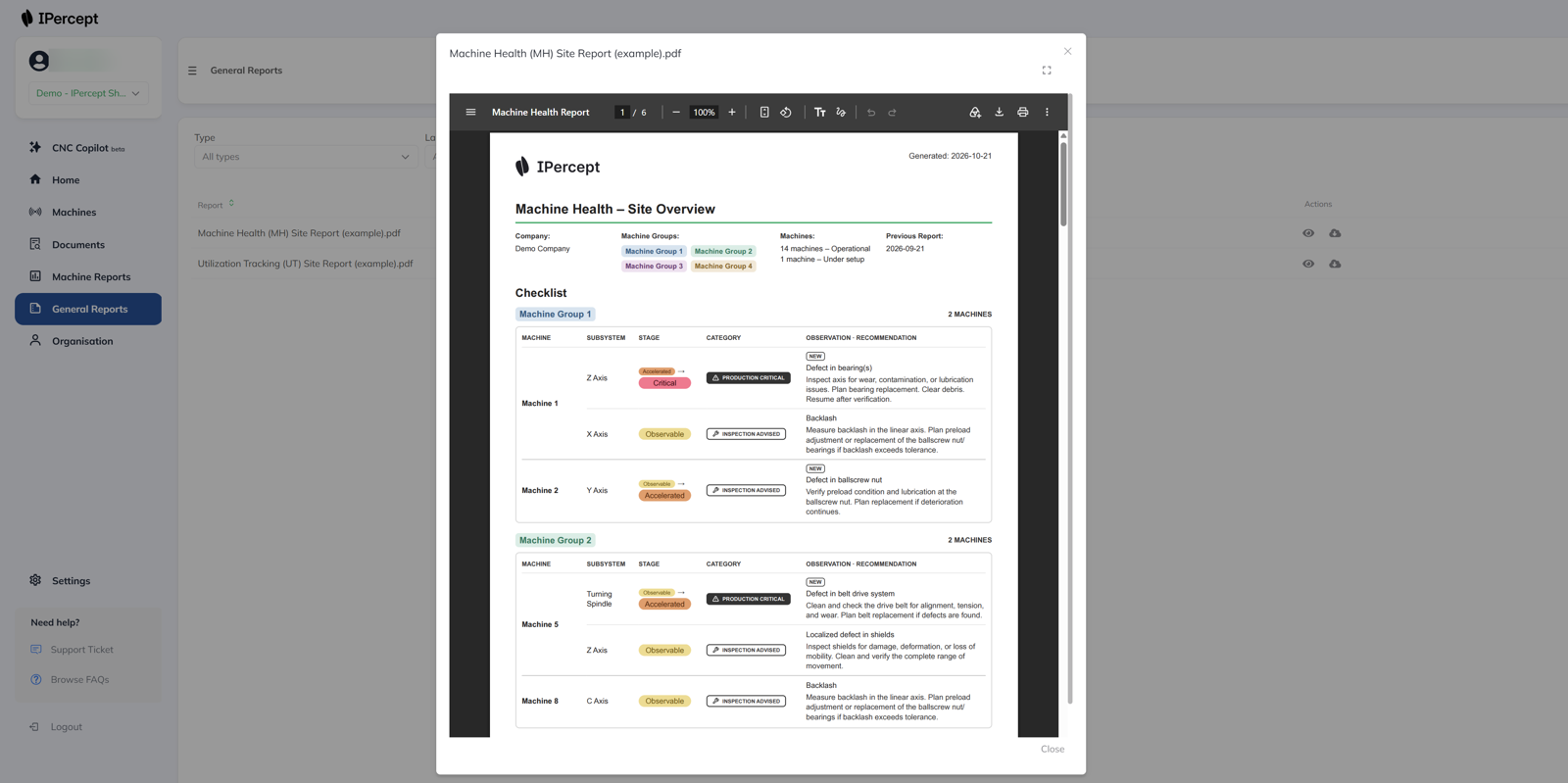
Results are published on the IPercept Portal, typically within the hour, and email notifications tell you when a degradation is identified[2]. Site Reports are listed in the Portal under General Reports, where you can open them in the browser or download them[8].
The Portal's Factory Overview gives the same site-wide picture online, with machines sortable by priority and component degradation[6]. Every machine is measured with the same method, the same test cycle logic and the same stage definitions, whatever its brand or age[7]. A stage on a grinding machine from one builder means the same as a stage on a turning centre from another, and that is what lets one report rank them, down to the component.
Book a demo with IPercept to see a Site Report for your own machines.
References
- Example Site Report: header, checklist, change markers, subsystem health overview, subsystem grid, resolved observations and reference definitions — Machine Health (MH) Site Report (example), Machine Health: Site Overview for Demo Company (Pages 1 to 6)
- Root Cause Analysis, report triggers, urgency categories, degradation stages as indicative RUL ranges, patented test cycle, digital twin, Portal, test frequency, notifications, scope and nature of service — Machine Health Service Description, version 1.1 (2026-09-15) (Sections 1, 2, 3.1 to 3.4, 4.1, 4.2, 5, 5.1, 8)
- Test cycle length and frequency, definition of a subsystem, no continuous monitoring, when stages are established — IPercept Machine Health & Portal Q&A (V1, 02/2025) (Machine Health Q3, Q5, Q6; Portal Q4)
- Standalone set-up by default, without integration into the customer's IT infrastructure — IPercept Information Security Framework (V1.7, 01/2025) (Architecture)
- The Site Report is compiled from the latest Machine Health report of each monitored machine — IPercept Site Report description (October 2026) (Site Report description)
- Portal Factory Overview with dynamic sorting by priority and component degradation — IPercept Customer Portal overview (2025) (Features: Factory Overview)
- Used across machine brands and ages, from old one-off builds to new standard machines — IPercept Standard Presentation (October 2025) (Machine agnostic slide)
- Site Reports listed in the Portal under General Reports, opened in the browser or downloaded — IPercept Portal, General Reports view (screenshot, October 2026) (General Reports view)


